Template previews
Free Student Planner Excel Template
By the time midterms hit, most students are running their semester out of four different places — a class schedule photographed on their phone, assignment due dates scattered across a notes app, a rough GPA estimate they did once in September, and a study log that never actually got started. Nothing talks to anything else, so a missed assignment doesn't show up anywhere until it's already overdue.
The Free Student Planner Excel Template puts all of it in one workbook instead. It isn't a single checklist — it's six connected sheets built around one Settings sheet, so the course codes you type once (ENG101, MAT120, or whatever your own courses are) show up automatically in your class schedule, your assignment log, your grade tracker, and your dashboard. Change your grade scale in Settings, and every weighted grade and GPA figure in the workbook recalculates with it.
It's built entirely in Excel, with no macros or VBA to enable, no linked accounts, and no software to install. You open the file, fill in the yellow input cells, and the formulas already in place handle the weighted GPA math, the assignment status counts, and the study-hour comparisons for you. The workbook ships with a full set of fictional sample data — a student named Taylor Morgan, six sample courses, thirty sample assignments — so you can see exactly how the sheets connect before you clear it out and enter your own semester.
The sections below walk through what's actually in the file, sheet by sheet, and how to set it up for your own classes.
What This Template Helps You Do
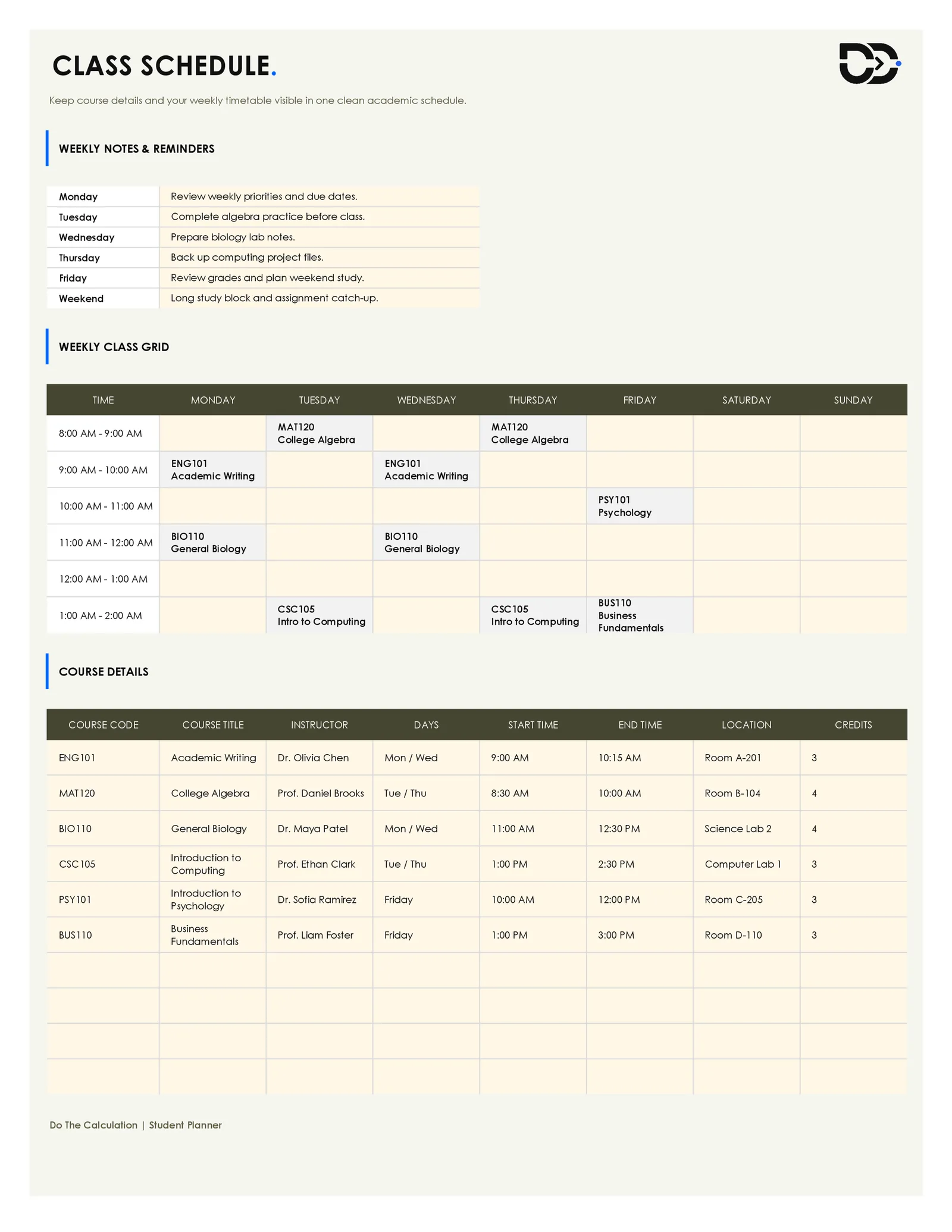
- Build one weekly class schedule — The Class Schedule sheet holds a full weekly class grid by time slot, plus a course details table with instructor names, room numbers, meeting days, start/end times, and credit hours.
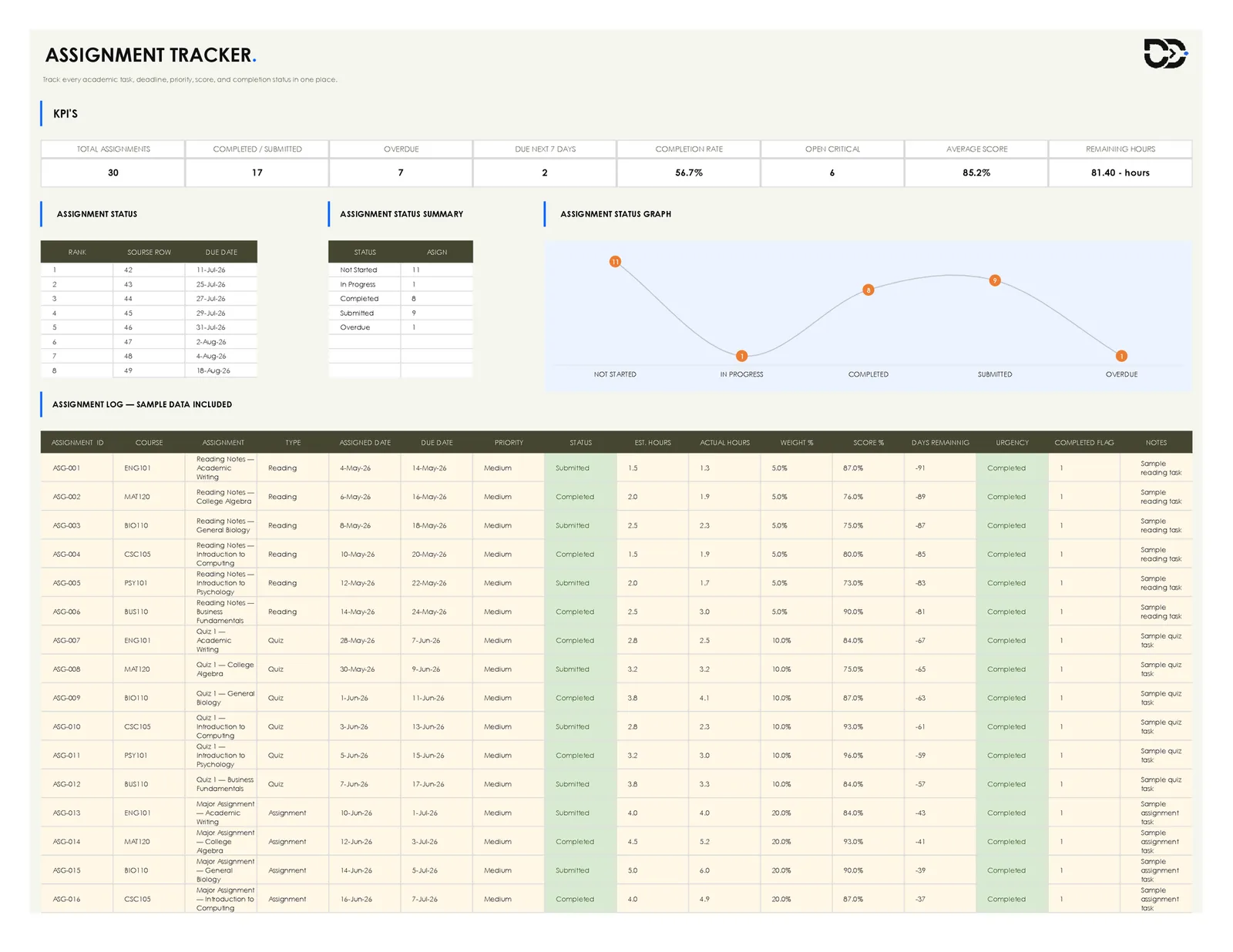
- Log and prioritize every assignment — The Assignment Tracker gives you one running list for every assignment across every course, with due dates, assignment type, priority level, and status (Not Started, In Progress, Completed, Submitted, Overdue).
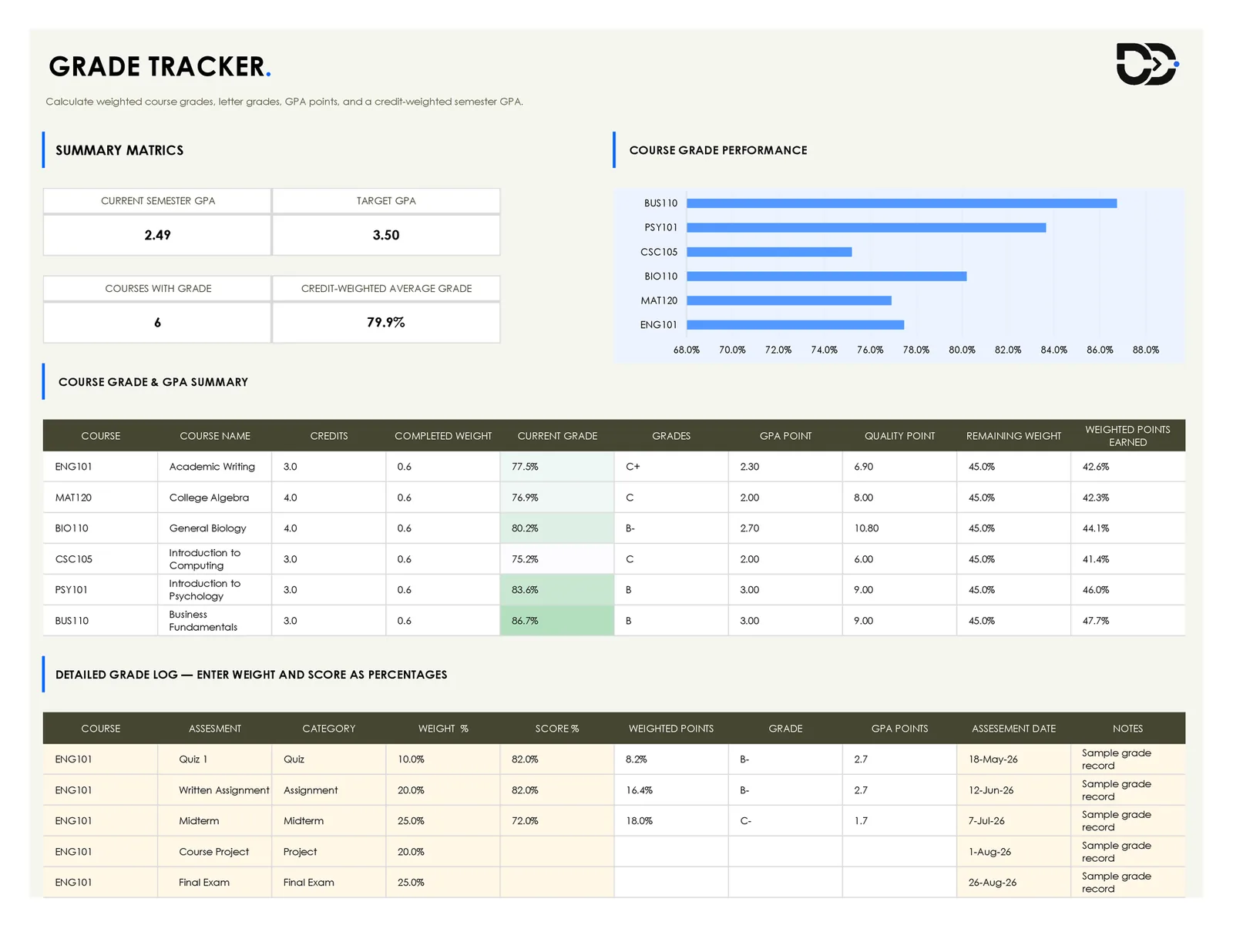
- Calculate a weighted grade and semester GPA — The Grade Tracker turns individual assessment scores — quizzes, assignments, midterms, projects, final exams — into a weighted current grade per course, then rolls those into a credit-weighted semester GPA using the editable grade scale from Settings.
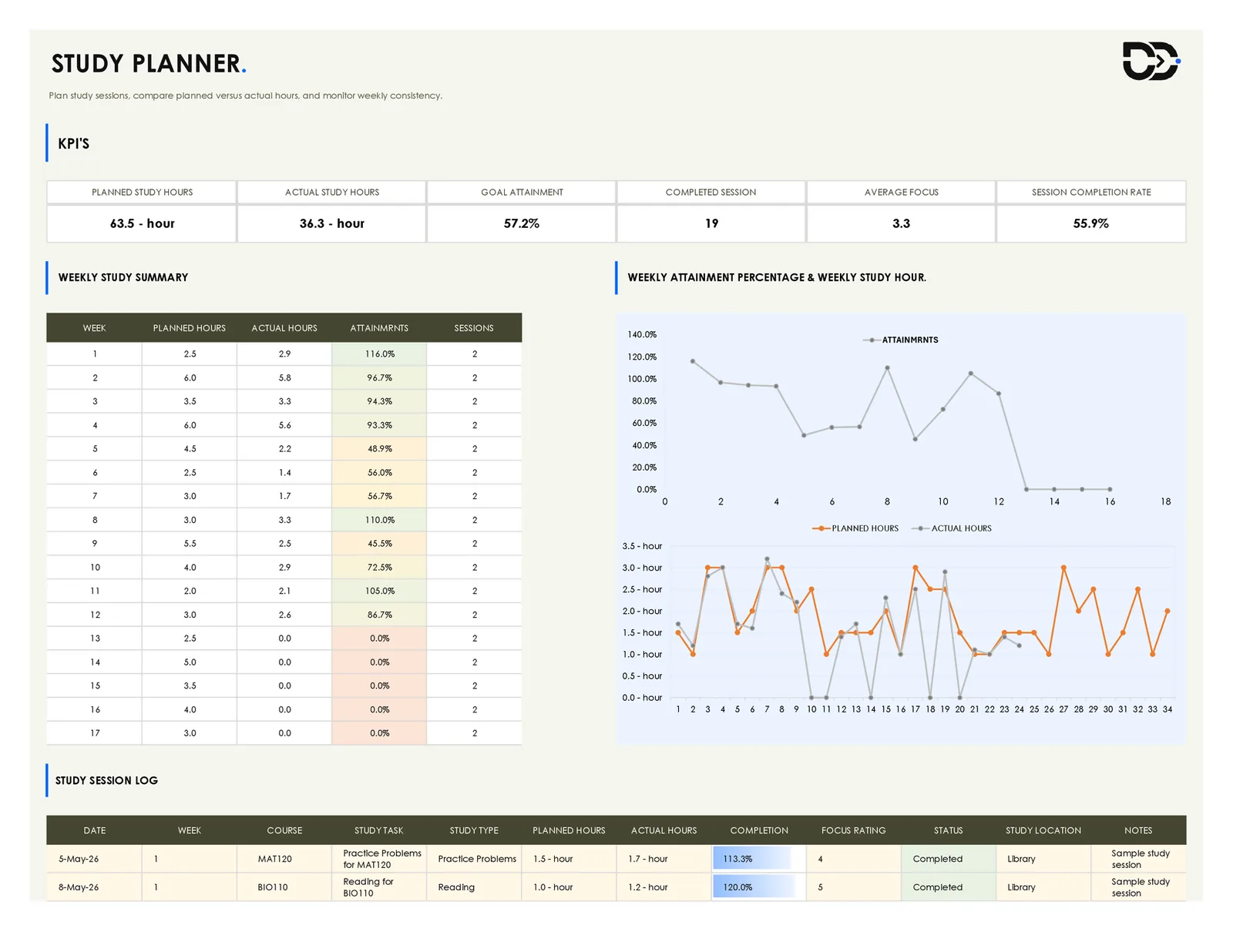
- Compare planned study time against actual study time — The Study Planner tracks weekly planned hours against actual logged hours, plus a session-by-session log with focus ratings and completion percentages.
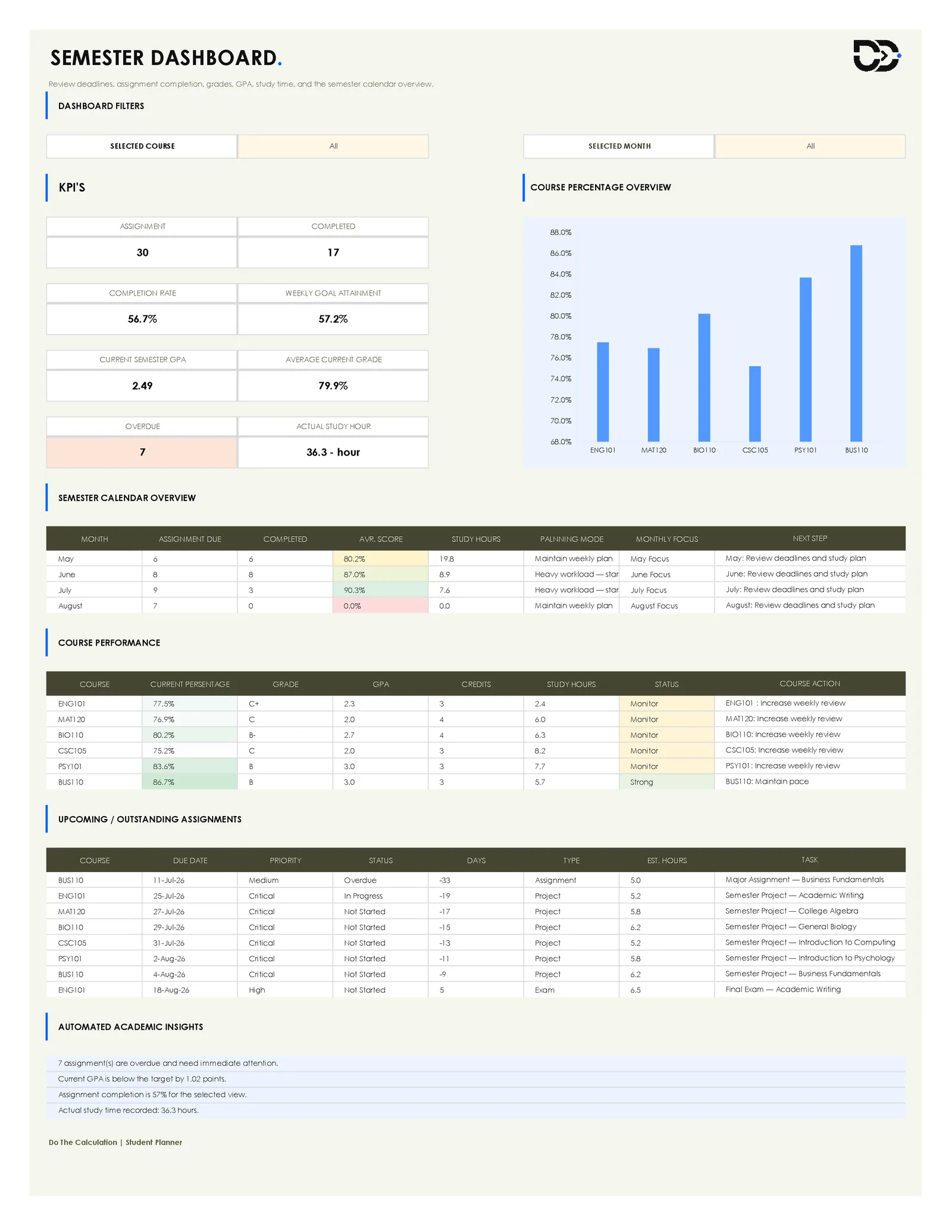
- Review one connected Semester Dashboard — Instead of checking four sheets separately, the Semester Dashboard summarizes assignment completion, current GPA, weekly study goal attainment, and overdue items in one place — filterable by course or by month.
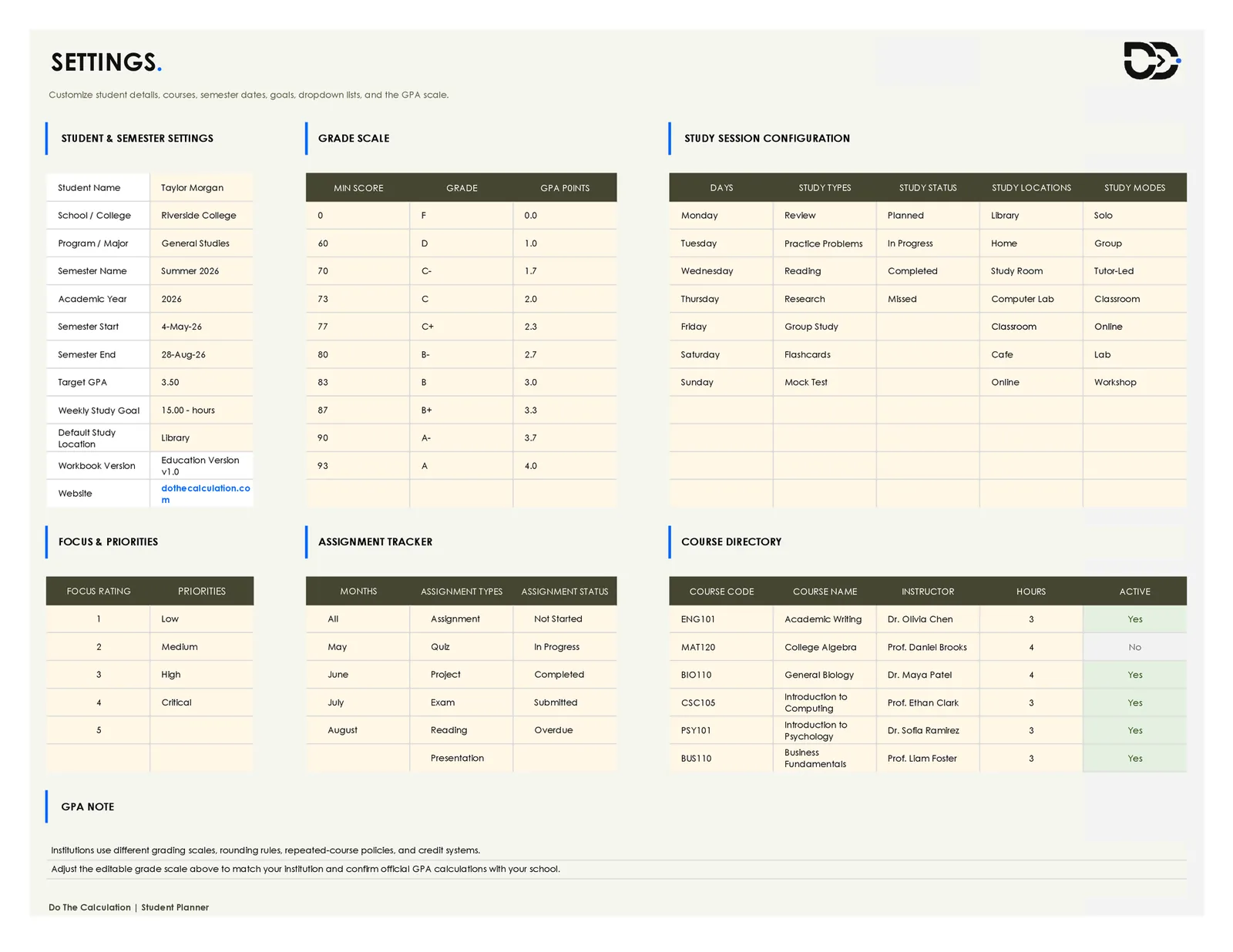
- Keep dropdown lists and categories consistent — Days, study types, study locations, assignment types, and assignment statuses are all pre-built dropdown lists in Settings, so formulas on other sheets match records correctly.
- Follow a month-by-month semester calendar — The Semester Dashboard's calendar overview breaks assignments due, completions, average score, and study hours out by month, so you can spot the heaviest month before you're in the middle of it.
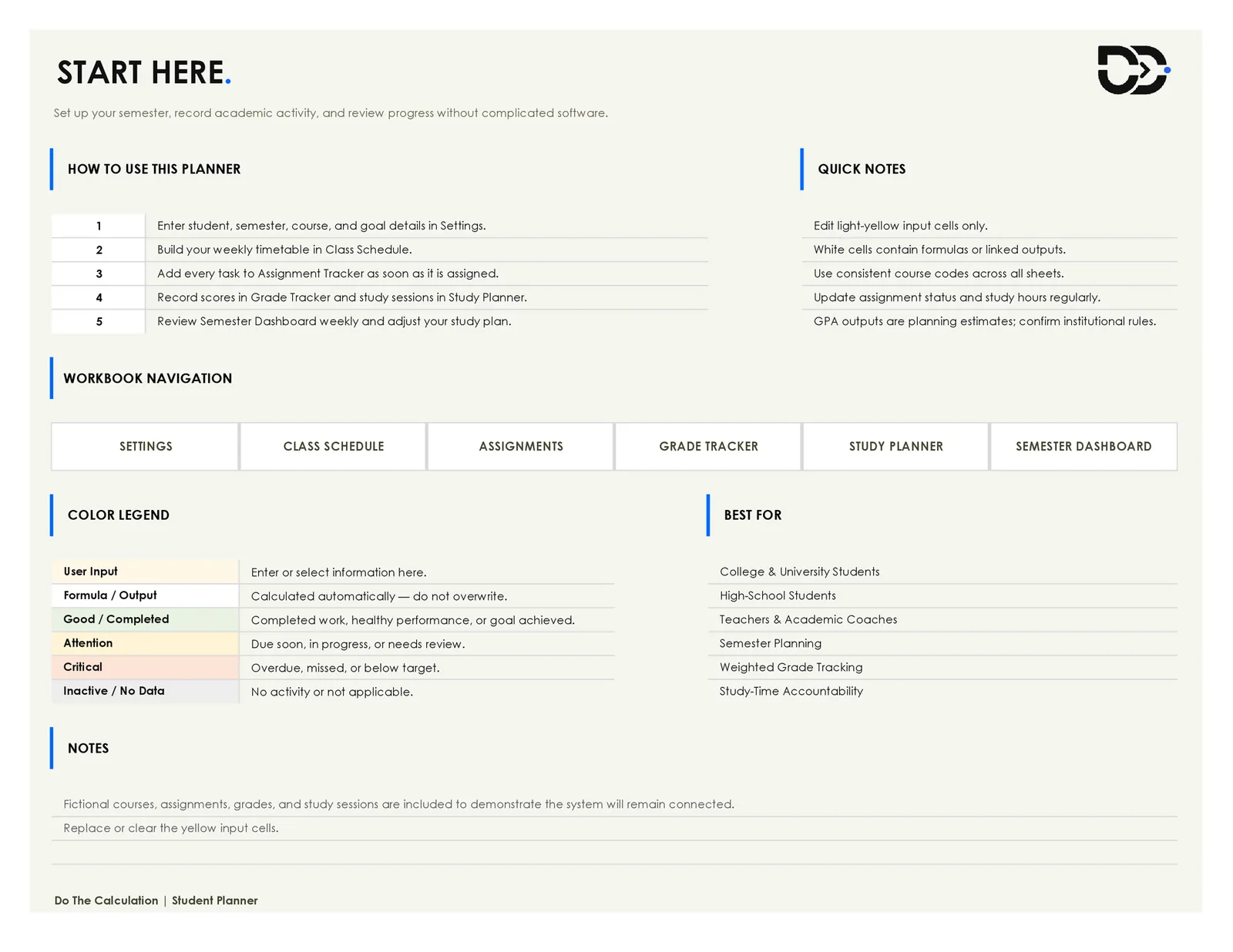
- Start from a guided setup instead of a blank grid — The Start Here sheet lays out a five-step setup order, a color legend explaining which cells are safe to edit, and a short list of who the workbook is designed for.
What's Included in the Workbook
The workbook contains nine sheets, in this order:
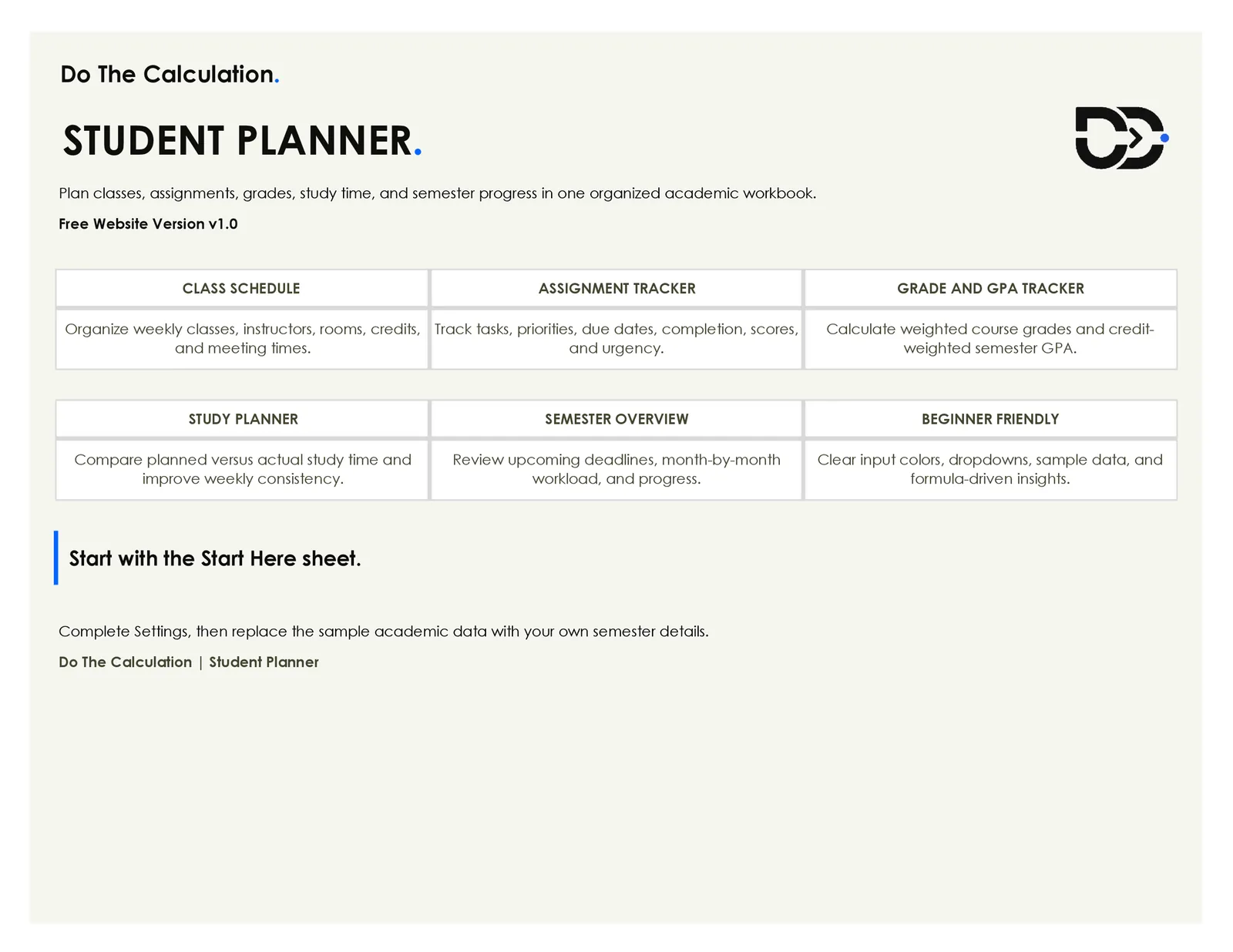
1. Cover Page
Brand header, template name, version number, and a short summary of the six core features. Reference only, nothing to edit.
2. Start Here
A five-step setup guide, a Quick Notes panel, a workbook navigation summary, a color legend for input vs. formula vs. status colors, and a Best For list.
3. Settings
The control sheet for the whole workbook — student and semester details, an editable grade scale (minimum score, letter grade, GPA points), dropdown source lists for study sessions and assignment tracking, a 1–5 focus/priority rating scale, and the course directory.
4. Class Schedule
Day-by-day weekly notes and reminders, a full weekly class grid by time slot, and a course details table pulling course codes from Settings.
5. Assignment Tracker
A KPI row (total assignments, completed/submitted, overdue, due in 7 days, completion rate, open critical items, average score, remaining hours), a status breakdown chart, and the full assignment log.
6. Grade Tracker
Summary metrics (current semester GPA, target GPA, courses with a grade, credit-weighted average grade), a course grade performance chart, and a detailed grade log where you enter each assessment weight and score.
7. Study Planner
A KPI row (planned vs. actual hours, goal attainment, completed sessions, average focus, session completion rate), a 17-week study summary table, two trend charts, and a study session log.
8. Semester Dashboard
Course and month filters, an eight-card KPI row, a course percentage chart, a semester calendar overview, a course performance table, an upcoming/outstanding assignments table, and an automated insights panel. Output only.
9. About
Template name, version, brand, format confirmation (no VBA/macros), compatibility note, GPA disclaimer, and redistribution note. Reference only.
How to Use the Template
- Step 1: Open the workbook and read Start Here — Skim the five-step setup order and the color legend before entering anything. Light-yellow cells are for input; white cells hold formulas you shouldn't overwrite.
- Step 2: Fill in your details on the Settings sheet — Enter your name, school, program, semester name, and semester dates. Check the grade scale against your school's grading policy, then replace the sample courses in the Course Directory with your own.
- Step 3: Build your weekly Class Schedule — Using the course codes you just set up, fill in the weekly class grid and complete the course details table.
- Step 4: Log every assignment as it's assigned — Add each assignment the day it's given, not the day it's due. Choose a status from the dropdown list rather than typing it freehand — that's what keeps the status-count formulas accurate.
- Step 5: Record scores in the Grade Tracker as work is graded — Enter each assessment's weight percentage and score percentage as grades come in. The course grade and GPA summary table updates automatically.
- Step 6: Plan and log sessions in the Study Planner — Set a weekly study goal in Settings, then log individual study sessions as you complete them.
- Step 7: Review the Semester Dashboard weekly — Use the course and month filters to check one course or one month at a time, and glance at the insights panel and overdue count.
- Step 8: Clear out the fictional sample data — Replace or delete the sample student, courses, and assignments once you're ready to enter your own semester.
Practical Example
The workbook's own sample data is a useful walkthrough on its own. It's set up for a student named Taylor Morgan at Riverside College, Summer 2026 semester, with a target GPA of 3.50 and a weekly study goal of 15 hours.
In the Grade Tracker, ENG101 (Academic Writing) has five graded categories: a quiz worth 10% of the grade, a written assignment worth 20%, a midterm worth 25%, a course project worth 20%, and a final exam worth 25%. With a quiz score of 82% and an assignment score of 82%, the sheet calculates a running weighted grade for the categories graded so far — it doesn't wait for every category to be filled in before showing a number.
Across all six sample courses, the Grade Tracker rolls those individual course grades into a credit-weighted semester GPA of 2.49 against the 3.50 target, visible on both the Grade Tracker and the Semester Dashboard without a second calculation.
Meanwhile, the Assignment Tracker shows 30 total assignments, 17 completed or submitted, and 7 overdue — a 56.7% completion rate. The Semester Dashboard's automated insights panel turns that into a plain-language note: current GPA is below target by 1.02 points, and 7 assignments need attention.
This example is only meant to show how the sheets work together. It isn't academic or admissions advice, and the numbers are the workbook's own sample data, not a real student's.
Understanding the Dashboard and Key Reports
Semester Dashboard filters
Two dropdowns — Selected Course and Selected Month — sit at the top. Set either to a specific value and the KPI cards and tables narrow to that slice of the semester, or leave both on "All" for the full picture.
KPI cards
Eight cards summarize the semester at a glance: total assignments, completed count, completion rate, weekly goal attainment, current semester GPA, average current grade, overdue count, and actual study hours logged.
Course Percentage Overview chart
A bar chart plotting current grade percentage per course side by side — the fastest way to see which course is pulling the GPA down.
Semester Calendar Overview
A month-by-month table showing assignments due, assignments completed, average score, study hours, and a short next-step note for each month.
Course Performance table
Each course gets a status flag — Monitor or Strong in the sample data — based on current grade performance, along with a suggested course action.
Upcoming / Outstanding Assignments table
A prioritized list of assignments still open, sorted by due date, pulling directly from the Assignment Tracker.
Automated Academic Insights
A short panel of plain-language observations built from the workbook's own numbers — for example, how many assignments are overdue or how far current GPA sits from the target.
Who This Template Is Best For
College and university students
Juggling multiple courses with different weighting schemes is exactly what the Grade Tracker's per-category weight system is built for.
High school students
The same schedule, assignment, and GPA structure works for a lighter course load — enter fewer courses in the Course Directory.
Teachers and academic coaches
The Start Here sheet lists this workbook as suitable for teachers and coaches, who can hand it to students or use it to model a semester planning system.
Students who want semester-level planning
The Semester Calendar Overview and Semester Dashboard are built around the full semester timeline, not a single week.
Students who care about weighted grade tracking
If your school grades on weighted categories rather than a flat average, the Grade Tracker is built specifically around that structure.
Students building study-time accountability
The Study Planner's planned-vs-actual comparison is aimed at students whose study plan and actual week don't match, and who want a record of it.
Students who prefer Excel over a phone app
Keeps academic planning in the same tool you already use for other coursework.
Beginners who want a guided setup
The Start Here sheet, color-coded input system, and pre-built dropdown lists are aimed at someone who hasn't built a tracking spreadsheet before.
Who This Template May Not Be For
- Students who want automatic syncing with their school's LMS or grade portal — There's no connection to Canvas, Blackboard, or a school's grade system; every score and due date is entered manually.
- Students who need a mobile app or real-time cloud sync — This is a single Excel file, without a built-in cloud sync layer.
- Students who need their official GPA for admissions or transcripts — GPA and grade outputs are estimates based on the editable grade scale you enter, not an official institutional calculation. Confirm real GPA and grades with your school's registrar.
- Users who want VBA macros or advanced automation — The workbook is intentionally built without macros, so there's no auto-import or one-click automation beyond the built-in formulas.
- Anyone managing multiple students or multiple semesters in one file — The Settings sheet is built around one student and one semester at a time; tracking a second semester means saving a new copy.
- Students who need investment, tax, or financial planning tools — This is an academic planner; it doesn't include budgeting or financial tracking features.
Why This Template Is Different
A blank spreadsheet doesn't know what a course code is until you build the logic yourself. This workbook already has that logic in place: the Course Directory in Settings feeds the same course list into the Class Schedule, the Assignment Tracker, and the Grade Tracker, so you enter a course once and reference it everywhere else with a dropdown instead of retyping it.
The grade scale is editable rather than hardcoded — change the minimum-score thresholds in Settings and every weighted grade and GPA figure downstream recalculates against your school's actual scale instead of a generic one.
The Semester Dashboard doesn't hold its own separate data entry — every number on it is pulled from the Assignment Tracker, Grade Tracker, and Study Planner, so there's one place to update information and multiple places to review it.
And because the whole workbook is a plain .xlsx file with no VBA or macros, it opens without Excel's macro security warning and without needing anything enabled first.
What You Get in the Download
The download is a single ZIP folder with everything you need to get started right away:
- A ready-to-use Student Planner workbook (.xlsx) — pre-filled with the full sample semester (Taylor Morgan, six courses, thirty assignments) so you can see every sheet working together before you enter your own data.
- A blank starter template (.xltx) — the same nine sheets with the sample data cleared out, ready for you to fill in your own semester from a clean workbook.
- A short note file — a quick summary of what is in the download and where to go if you need something beyond the free version.
Practical Tips Before You Start
- Complete the Settings sheet fully before touching any other sheet — the course directory and grade scale are what make everything downstream work correctly.
- Use the same course code everywhere (ENG101, not "Eng 101" on one sheet and "ENG-101" on another) — formulas match on exact text.
- Only type into the light-yellow input cells. White cells hold formulas and will show incorrect results if overwritten.
- Clear or replace the fictional sample data before your first real week of use.
- Update assignment status as things happen, not in a batch at month-end — the overdue and completion-rate figures are only as current as your last update.
- Check your school's actual grading scale against the one in Settings before you rely on the GPA figure for anything important.
- Save a backup copy of the file before making large structural changes.
- Use the Semester Dashboard's course and month filters to review one thing at a time instead of scanning every table at once.
- Log study sessions right after they happen — hours estimated from memory later in the week tend to drift from what actually happened.
- Save a new copy of the workbook for each new semester rather than clearing and reusing the same file.
Common Mistakes to Avoid
- Typing dates as plain text instead of real dates — the due-date, days-remaining, and urgency formulas depend on actual date values.
- Overwriting formula cells — it's easy to type a number over a white output cell by accident. If a total or GPA figure suddenly looks static or wrong, check whether the formula is still there.
- "MAT120" on one sheet and "Math 120" on another will not match in lookups — using inconsistent course codes quietly breaks the connection between that course's data across sheets.
- Leaving fictional sample rows mixed in with real data — half-sample, half-real assignment logs throw off the completion-rate and average-score KPIs.
- Not updating the grade scale to match your school — the default scale is a reasonable general-purpose scale, not necessarily your institution's.
- Adding categories that aren't in the dropdown lists — typing a study type or status that isn't in the Settings dropdown can break the status-count formulas.
- Entering assessment weights that don't add up to 100% per course — the Grade Tracker's weighted grade calculation assumes the category weights sum to 100%.
- Waiting until an assignment is already overdue to log it — the Assignment Tracker is most useful as a running list you update as work is assigned.
Limitations and Honest Notes
- This workbook is for planning and organization purposes only — it is not academic, admissions, or professional advice.
- GPA, grade, and study figures are estimates based on the information you enter and the editable grade scale in Settings. Official grading rules vary by school, course, and instructor — confirm real grades and GPA with your institution.
- The file is a plain Excel workbook with no VBA or macros.
- It's built primarily for Microsoft Excel. The workbook notes describe reasonable Google Sheets compatibility, but formulas, dropdown lists, and conditional formatting are not guaranteed to render identically in Sheets.
- Manual data entry is required throughout — there is no automatic import from a school portal, LMS, or calendar app.
- Every sheet has a defined print area, but exact print appearance can still vary by printer, paper size, and margin settings.
- Save a backup copy of the file before making large edits — formulas can break if a white output cell is overwritten with typed text or numbers.
- Unauthorized resale or redistribution of the template file itself is not permitted.
Frequently Asked Questions
Is the student planner template really free?
Yes. This is a free website download with no sign-up required.
Does it work in both Excel and Google Sheets?
It's built primarily for Microsoft Excel. The workbook describes reasonable Google Sheets compatibility, but some formulas, dropdown lists, or conditional formatting may not display identically if opened in Sheets.
Does the workbook use macros or VBA?
No. It's a plain .xlsx file with no macros, so it opens without any security warning and doesn't require enabling anything.
Can I edit the categories, dropdown lists, and grade scale?
Yes. The Settings sheet holds the course directory, study-session dropdown lists, and an editable grade scale you can adjust to match your own school.
Can I print the dashboard or individual sheets?
Every sheet has a defined print area set, including the Semester Dashboard, so you can print a clean version of any sheet directly from Excel.
Does it track assignments and grades in the same file?
Yes. The Assignment Tracker and Grade Tracker are separate sheets, but both connect to the same Course Directory in Settings and both feed into the Semester Dashboard.
Is there a dashboard, or do I have to check each sheet separately?
The Semester Dashboard summarizes assignment completion, GPA, study goal attainment, and overdue items in one place, with filters for a specific course or month.
Is this beginner-friendly if I've never built a tracking spreadsheet before?
The Start Here sheet walks through a five-step setup order and a color legend for which cells to edit, and the workbook already contains a full set of sample data so you can see how everything connects before entering your own.
Is the GPA calculation official?
No. It's an estimate based on the grade scale you enter in Settings. Grading rules vary by school and instructor, so confirm your actual GPA with your institution.
Can I reuse this file for a future semester?
You can, but the Settings sheet is built around one semester at a time. Most people save a new copy of the file for each new semester rather than clearing and reusing the same one.
What if I break a formula by accident?
Undo (Ctrl+Z) will usually fix an accidental overwrite if caught immediately. Keeping a backup copy before large edits is the more reliable safeguard — the workbook doesn't include a formula-repair feature.
Is there a Premium or custom version of this template?
This free download is the standard website version. If you need a Premium version with more features, or a custom Excel or Google Sheets template built around your own courses and grading policy, share your query and details at quote@dothecalculation.com and we'll send you a quote for that work.
What exactly do I get when I download the file?
The download is a ZIP folder containing a ready-to-use workbook pre-filled with sample data, a blank starter template (.xltx) with the sample data cleared, and a short note file summarizing what is included.
Can I change the currency, date format, or regional settings?
The workbook doesn't include currency fields — it's an academic planner rather than a financial one. Date and number formats follow your own Excel regional settings.