Template previews
Free Checkbook Register Excel Template
Most people who still balance a checkbook end up doing it in two disconnected places: a paper register or a notes app for what they've spent, and a mental guess for whether that number still matches what the bank shows. The gap between those two usually doesn't surface until an outstanding check clears three weeks late and the running balance suddenly doesn't add up to anything you can explain.
The Checkbook Register Excel Template is built around closing that gap instead of just recording numbers. It's a single Excel workbook — no macros, no linked accounts — organized around one Transaction Register that every other sheet reads from. You log a deposit, withdrawal, check, fee, transfer, interest payment, or refund once, and the running balance, the monthly reconciliation, the category breakdown, and the dashboard all update from that same row. When it's time to check your account against the bank statement, the Reconciliation sheet doesn't just ask you to eyeball two numbers — it walks the difference down to the individual outstanding items keeping them apart.
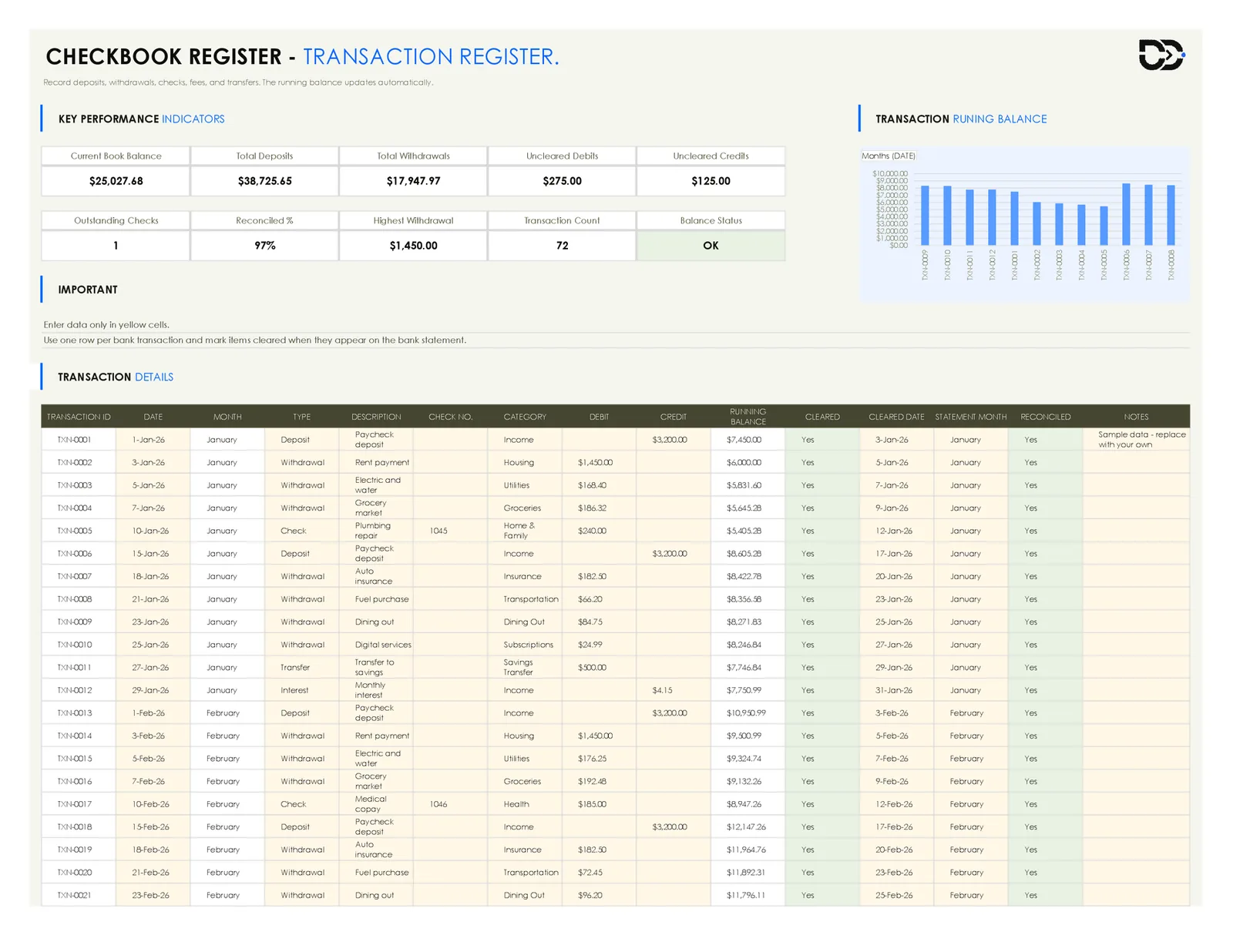
The workbook ships with 72 sample transactions across six months (January through June 2026) for a fictional household checking account, so you can see the register, the reconciliation, and the dashboard all working together before you clear the sample data and start entering your own account.
The sections below go sheet by sheet through what's actually in the file and how to set it up for your own checking account.
What This Template Helps You Do
- Log every transaction in one register — The Transaction Register holds one row per bank transaction, covering deposits, withdrawals, checks (with check number), fees, transfers, interest, and refunds, with a running balance formula that updates after each entry.
- Track a running balance without doing the math yourself — Enter a debit or a credit and the Running Balance column carries the math forward automatically, the same way a paper register would, minus the arithmetic.
- Mark items cleared as they hit your bank statement — A Cleared column (Yes/No/Review) and a Cleared Date column let you track which entries have actually posted at the bank versus which are still sitting in your register only.
- Reconcile against your bank statement monthly — The Reconciliation sheet takes your statement's ending balance and walks through cleared deposits, cleared withdrawals, and outstanding items to show whether your register and your bank statement actually agree.
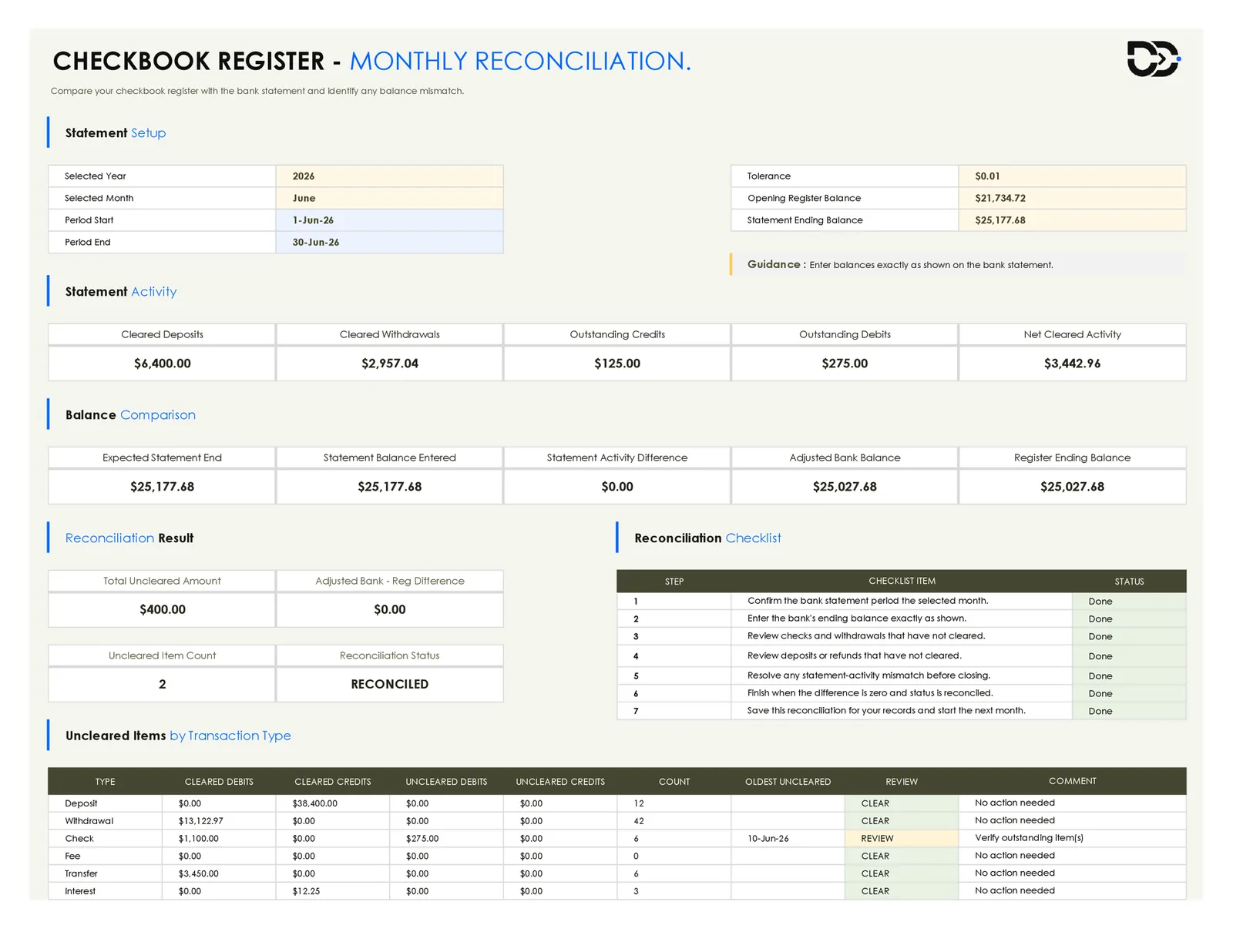
- "Uncleared Items by Transaction Type" table breaks the gap down by type (check, deposit, transfer, and so on), so you know precisely what to chase down instead of facing a single unexplained difference.
- Review spending by category on a dashboard — The Dashboard filters by month, year, cleared status, and category, and shows current balance, cleared rate, outstanding checks, and category spending in one screen.
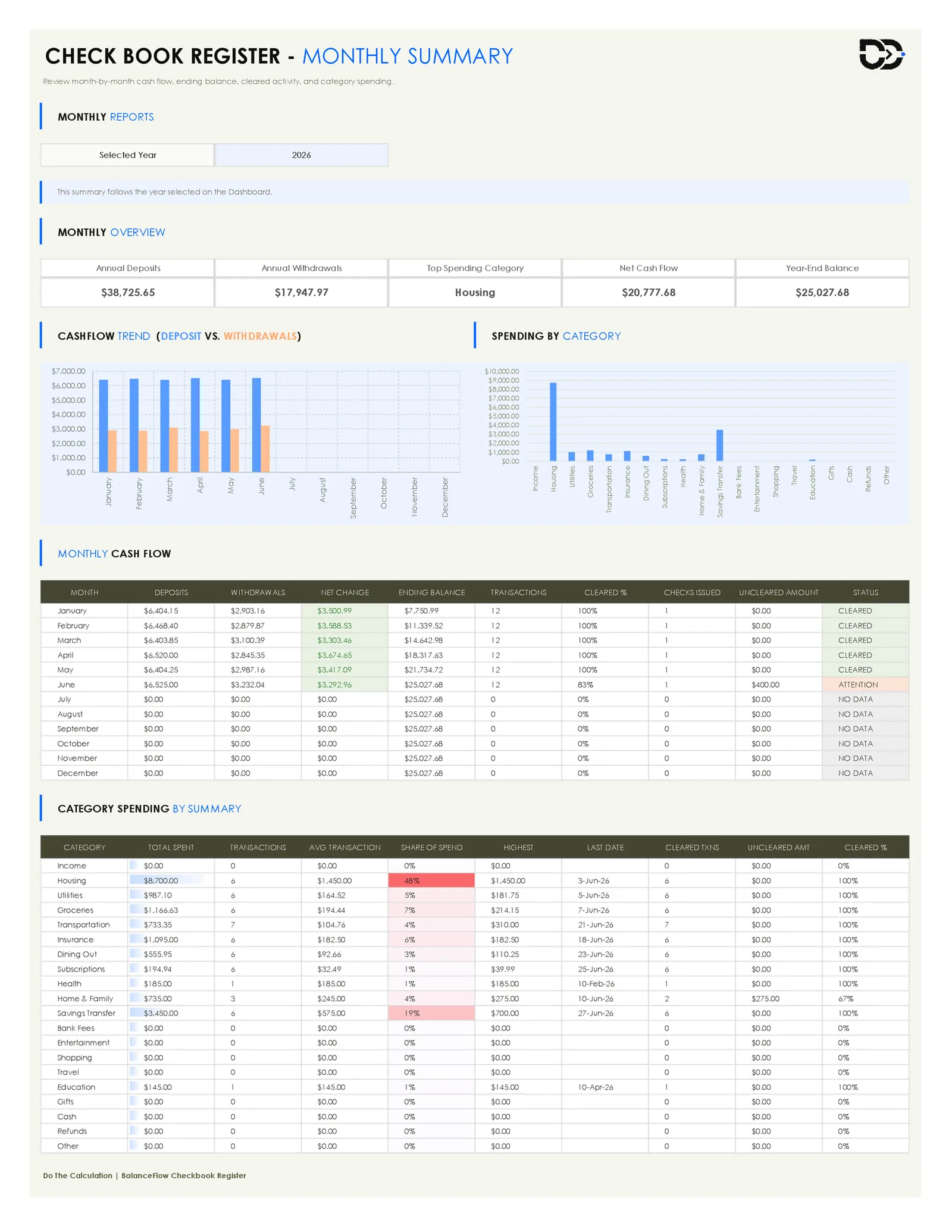
- Compare month-by-month cash flow — The Monthly Summary sheet rolls the register into a month-by-month table (deposits, withdrawals, net change, ending balance, cleared percentage) so you can see trends across the year instead of just the current balance.
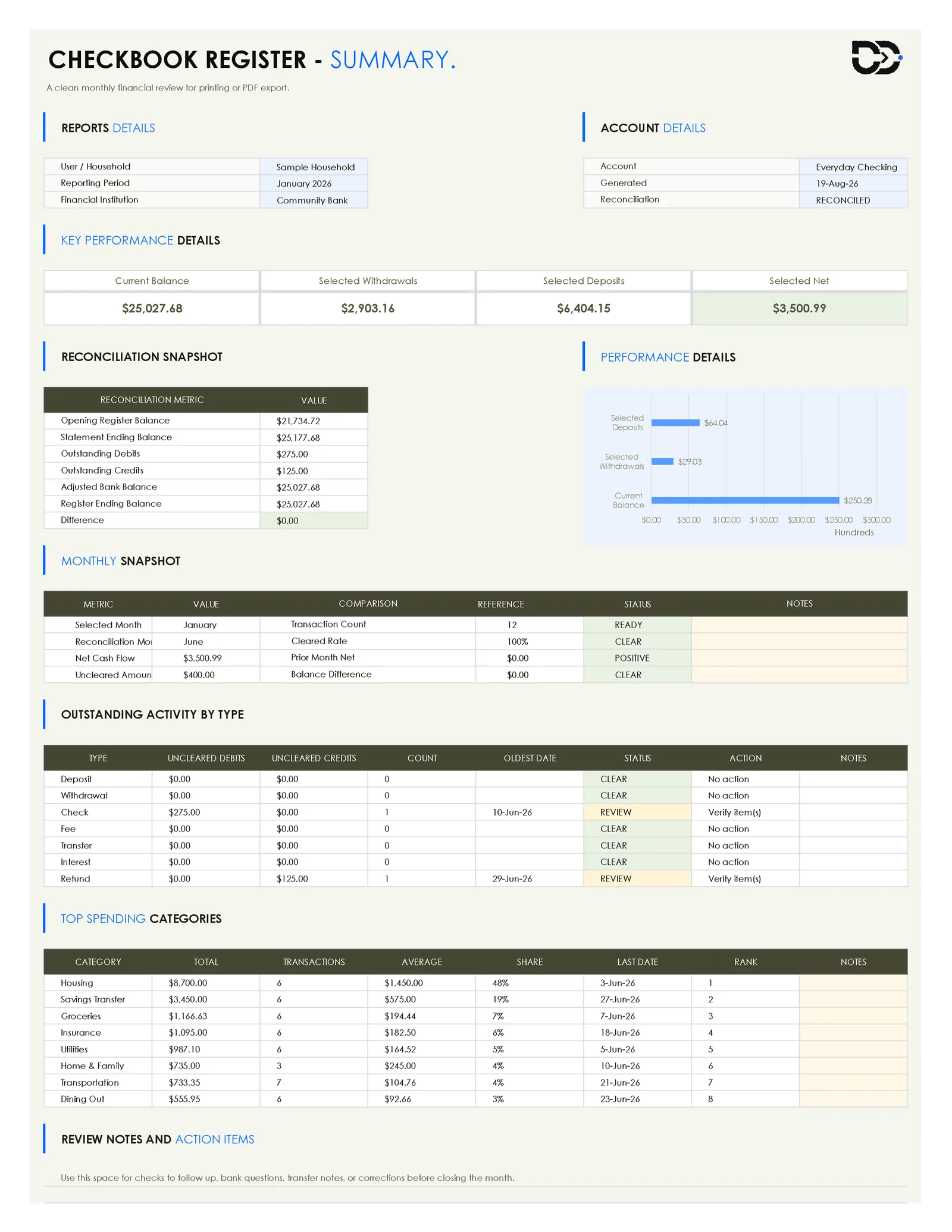
- Print or export a clean monthly report — The Print Summary sheet condenses the account details, reconciliation snapshot, and top spending categories into a layout built for printing or saving as a PDF.
What's Included in the Workbook
The workbook contains nine sheets, in this order:
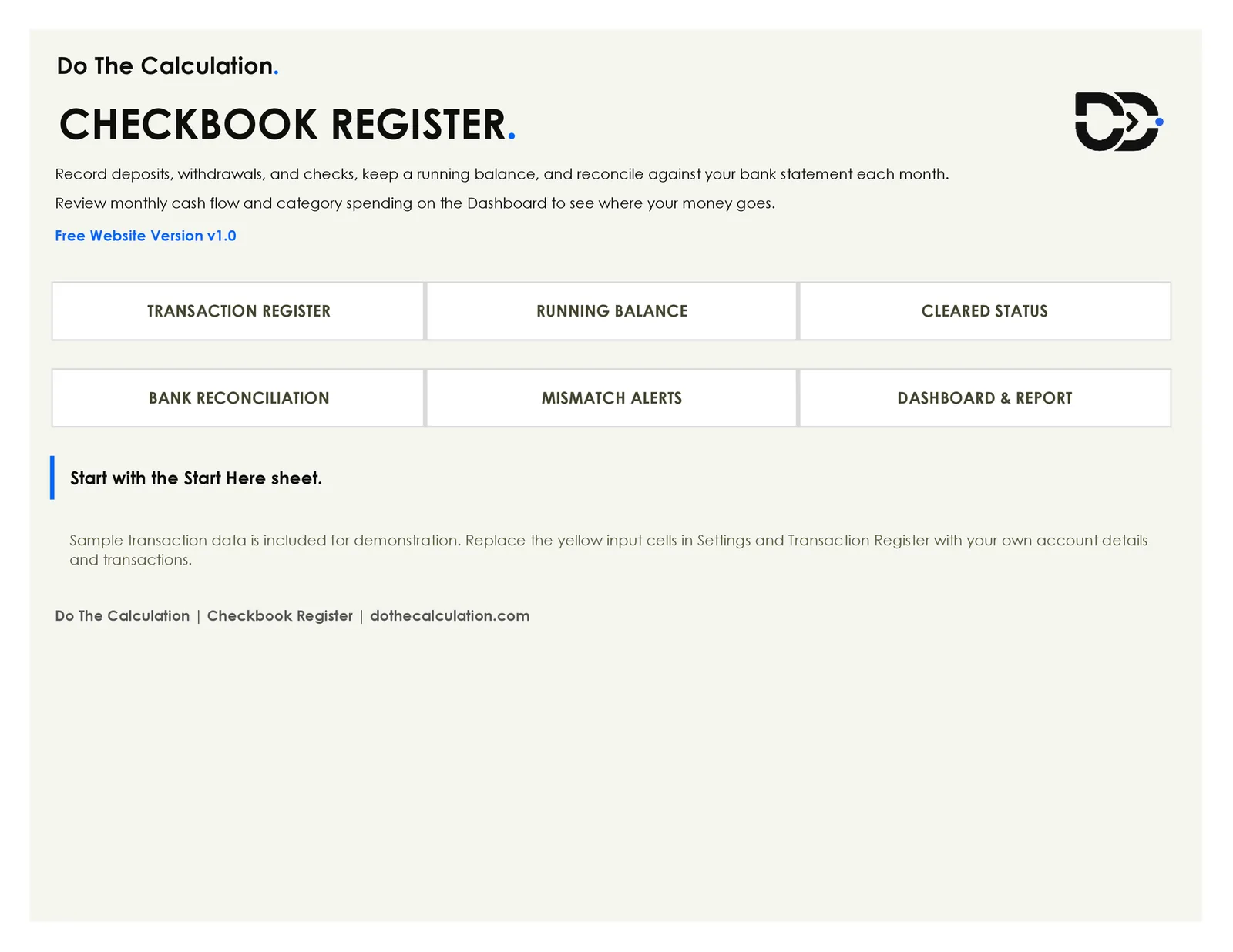
1. Cover
Brand header, template name, version, and a six-feature overview grid (Transaction Register, Running Balance, Cleared Status, Bank Reconciliation, Mismatch Alerts, Dashboard & Report). Reference only.
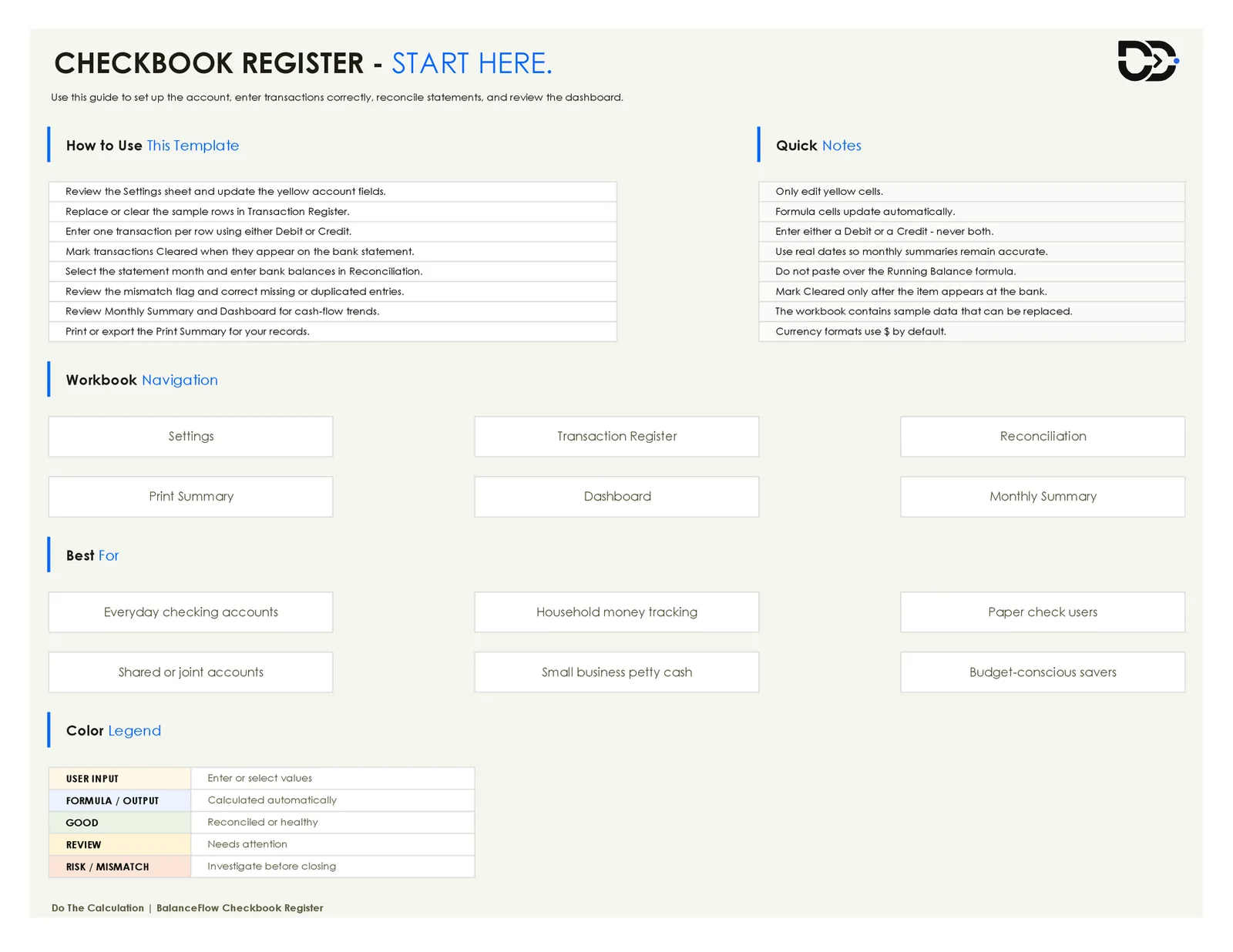
2. Start Here
An eight-step "How to Use This Template" checklist, a Quick Notes panel, a workbook navigation summary linking to every sheet, a Best For list, and the color legend used across the whole workbook (User Input, Formula/Output, Good, Review, Risk/Mismatch).
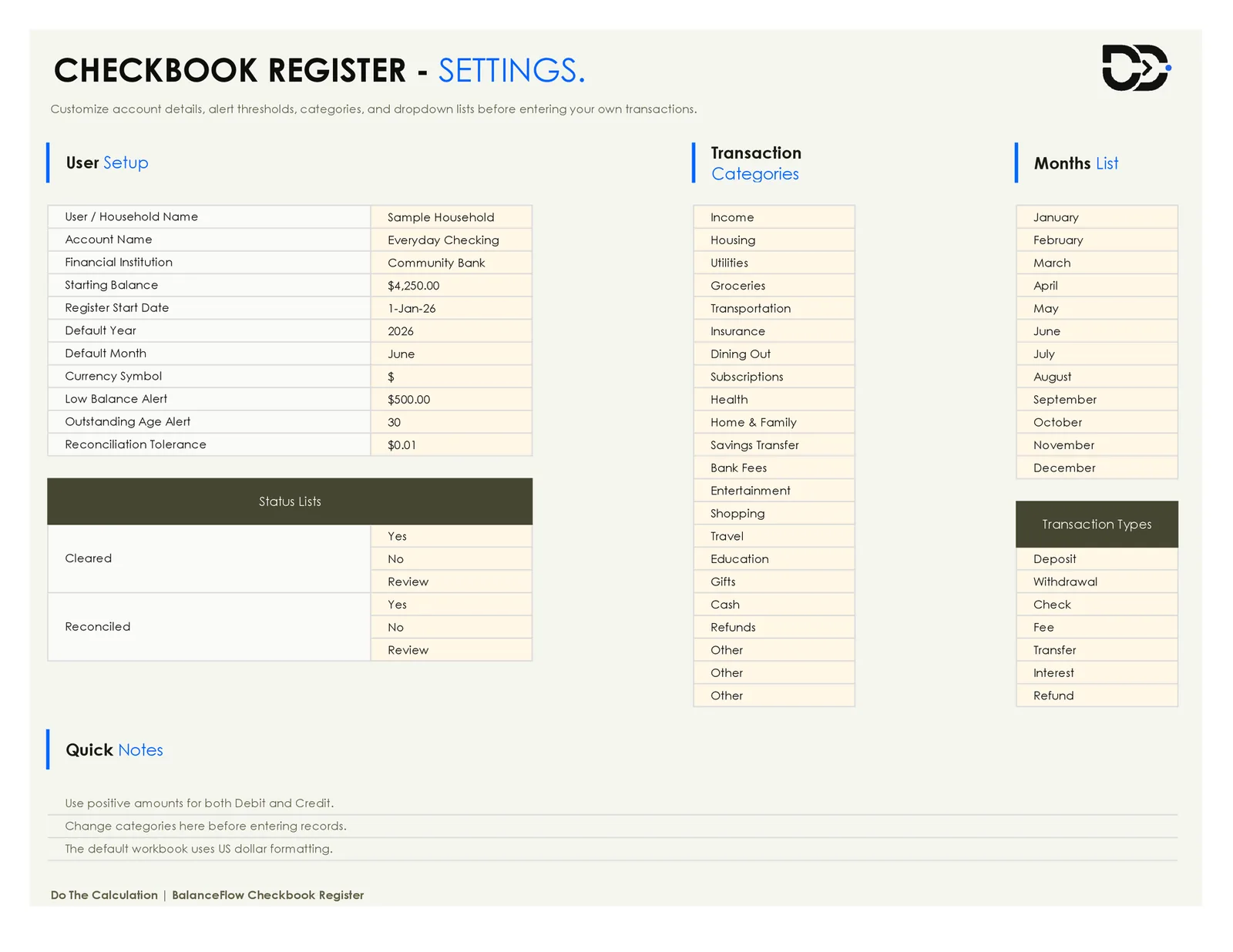
3. Settings
The control sheet for the whole workbook — User/Household Name, Account Name, Financial Institution, Starting Balance, Register Start Date, Default Year and Month, Currency Symbol, Low Balance Alert threshold, Outstanding Age Alert (days), and Reconciliation Tolerance, plus the dropdown source lists used everywhere else: 20 transaction categories, the Cleared and Reconciled status lists, the months list, and seven transaction types (Deposit, Withdrawal, Check, Fee, Transfer, Interest, Refund).
4. Transaction Register
A KPI row (Current Book Balance, Total Deposits, Total Withdrawals, Uncleared Debits, Uncleared Credits, Outstanding Checks, Reconciled %, Highest Withdrawal, Transaction Count, Balance Status), a running-balance trend chart, and the transaction table itself — Transaction ID, Date, Month, Type, Description, Check No., Category, Debit, Credit, Running Balance, Cleared, Cleared Date, Statement Month, Reconciled, and Notes. Ships with 72 sample transactions across January–June 2026. This is the sheet you'll touch most.
5. Reconciliation
Statement Setup (selected year/month, period start/end, tolerance, opening register balance, statement ending balance), a Statement Activity summary (cleared deposits, cleared withdrawals, outstanding credits and debits), a Balance Comparison block, a Reconciliation Result with a seven-step checklist, and an "Uncleared Items by Transaction Type" table that breaks outstanding amounts down by transaction type with a Review/Clear flag per type.
6. Monthly Summary
A year selector, a Monthly Overview KPI row (Annual Deposits, Annual Withdrawals, Top Spending Category, Net Cash Flow, Year-End Balance), a cash-flow trend chart (deposits vs. withdrawals by month), a spending-by-category chart, a full Monthly Cash Flow table (one row per month), and a Category Spending by Summary table across all 20 categories. Calculates itself from the Transaction Register.
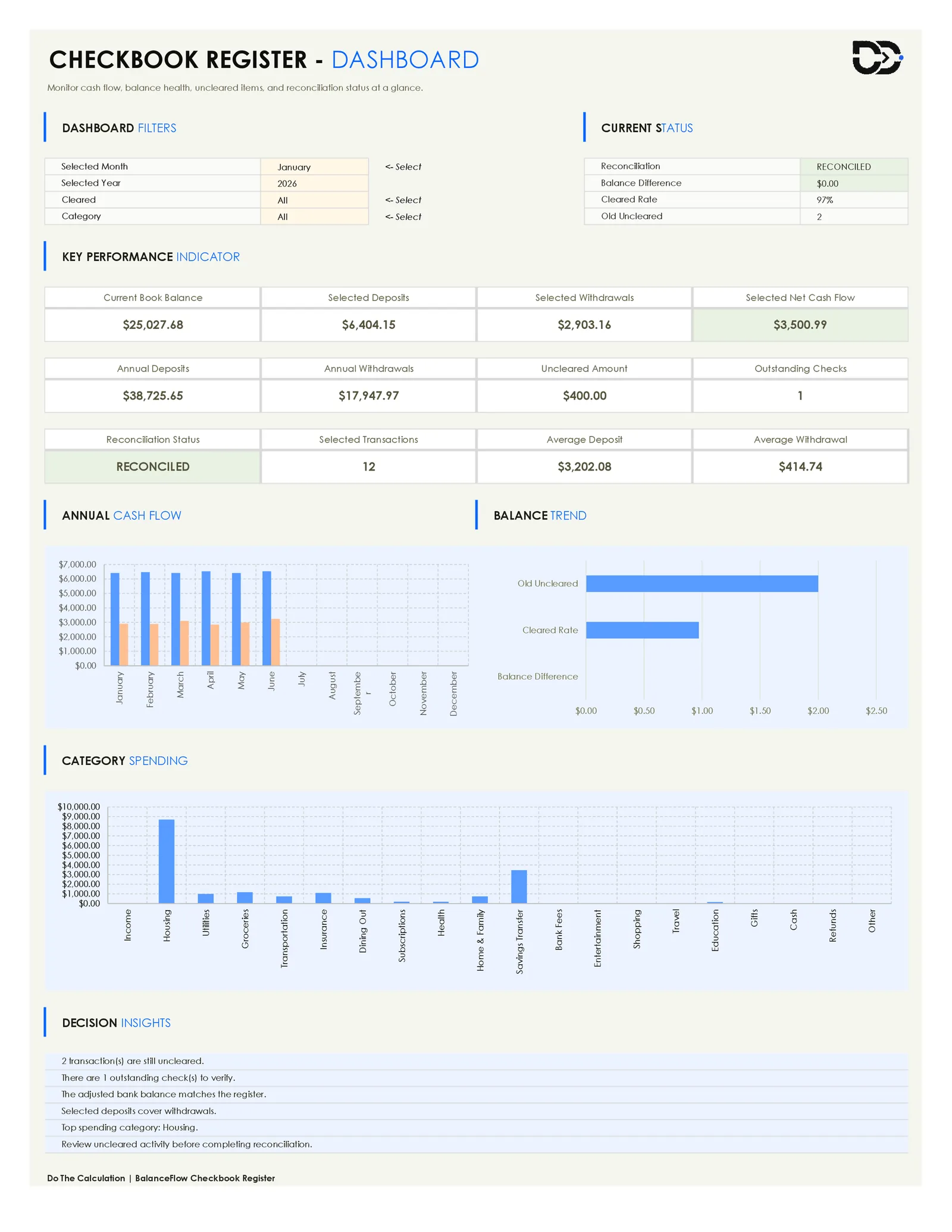
7. Dashboard
Four filters (Selected Month, Selected Year, Cleared, Category), a Current Status block (reconciliation status, balance difference, cleared rate, old uncleared count), a 12-card KPI grid, an Annual Cash Flow chart, a Balance Trend chart, a Category Spending chart, and a Decision Insights panel with short auto-generated observations. Output only.
8. Print Summary
A print-ready layout — Reports Details, Account Details, a KPI row, a Reconciliation Snapshot table, a Performance Details chart, a Monthly Snapshot table, an Outstanding Activity by Type table, a Top Spending Categories table, and a blank Review Notes and Action Items area for your own written follow-up.
9. About
Template name, version, brand, format confirmation (Excel workbook without VBA/macros), Google Sheets compatibility note, usage note, disclaimer, and redistribution note. Reference only.
How to Use the Template
- Step 1: Open the workbook and read Start Here — Review the eight-step setup order, the color legend, and the Best For list before you touch any other sheet. Yellow cells are for input; white cells hold formulas you shouldn't overwrite.
- Step 2: Set up your account on Settings — Replace the sample household name, account name, financial institution, and starting balance with your own. Set your register start date, currency symbol, low-balance alert amount, and reconciliation tolerance.
- Step 3: Review and adjust the category and transaction-type lists — The default 20 categories cover most household spending; use the three open "Other" slots for anything specific to your own budget, and check that the seven transaction types match how you actually bank.
- Step 4: Clear the sample rows and start logging your own transactions — Enter one row per bank transaction in the Transaction Register: date, type, description, category, and either a debit or a credit (never both in the same row). The Running Balance column carries forward automatically.
- Step 5: Mark items Cleared as they post at your bank — Update the Cleared column and Cleared Date only once an item actually appears on your online banking or statement, not the day you write the check or make the transfer.
- Step 6: Reconcile monthly on the Reconciliation sheet — Select the statement month and year, enter your bank statement's ending balance exactly as shown, and review the Uncleared Items by Transaction Type table for anything flagged Review.
- Step 7: Review Monthly Summary and Dashboard for trends — Use the Dashboard's month, year, cleared, and category filters to check a specific slice of your spending, and check Monthly Summary for month-over-month cash flow.
- Step 8: Print or export the Print Summary at month-end — Use it as a static, printable record once your reconciliation status reads RECONCILED.
Practical Example
The workbook's own sample data is a useful walkthrough on its own. It's set up for "Sample Household," an Everyday Checking account at Community Bank, with a starting balance of $4,250.00 on January 1, 2026.
In January, the register logs a paycheck deposit ($3,200.00) that brings the balance to $7,450.00, then a rent withdrawal (-$1,450.00), utilities (-$168.40), groceries (-$186.32), a plumbing repair paid by check #1045 (-$240.00), a second paycheck deposit, auto insurance, fuel, dining out, a subscription payment, a $500 transfer to savings, and a small interest credit — twelve transactions in total, ending the month at $7,750.99. Each entry is a single row; the Running Balance column does the addition and subtraction as you go.
By June, the register has carried the account through 72 transactions and a current book balance of $25,027.68. When you reconcile June against the bank statement, the statement's ending balance is $25,177.68 — a $150.00 difference from the book balance at first glance. The Reconciliation sheet doesn't leave that as an unexplained gap: it shows $6,400.00 in cleared deposits, $2,957.04 in cleared withdrawals, and two specific outstanding items — a $275.00 check dated June 10 that hasn't cleared yet, and a $125.00 credit dated June 29 still showing as uncleared. Once those two items are accounted for, the adjusted bank balance and the register's ending balance both land on $25,027.68, the difference reads $0.00, and the Reconciliation Status flips to RECONCILED.
That's the actual value of the sheet: it doesn't just tell you the numbers don't match — it tells you which two transactions are the reason, so you know exactly what to follow up on before you close the month.
This example uses the workbook's own sample figures to show how the sheets work together. It isn't a real account, and the numbers shouldn't be read as financial guidance.
Understanding the Dashboard and Key Reports
Dashboard filters
Four dropdowns — Selected Month, Selected Year, Cleared, and Category — sit at the top of the Dashboard. Set any of them to a specific value and the KPI cards, charts, and insights below narrow to that slice of your account; leave them on "All" for the full picture.
Current Status block
A compact summary of where the account stands right now: Reconciliation status, Balance Difference, Cleared Rate, and how many items are still "old uncleared" — outstanding past the age threshold you set in Settings.
KPI grid
Twelve cards covering both point-in-time figures (current book balance, outstanding checks, uncleared amount) and filtered figures (selected deposits, selected withdrawals, average deposit, average withdrawal) so you can see both the whole-account picture and the filtered slice side by side.
Annual Cash Flow and Balance Trend charts
The Annual Cash Flow chart plots deposits against withdrawals by month across the full year. The Balance Trend chart is a horizontal bar comparing Old Uncleared, Cleared Rate, and Balance Difference — a fast visual check for whether anything needs attention before you consider the month closed.
Category Spending chart
A bar chart across all 20 spending categories, making spending patterns easy to spot at a glance instead of scrolling through a row-by-row register.
Decision Insights panel
A short list of plain-language observations generated from the workbook's own numbers — for example, "2 transaction(s) are still uncleared," "There are 1 outstanding check(s) to verify," or "The adjusted bank balance matches the register."
Print Summary
Mirrors the key numbers from the Dashboard and Reconciliation sheets in a static, printable layout, with Reconciliation Snapshot and Outstanding Activity by Type tables plus a blank notes section for your own follow-up.
Who This Template Is Best For
Everyday checking accounts
The workbook is built around one account at a time — the exact structure most people need for a primary checking account they use daily.
Household money tracking
The 20-category list (Housing, Groceries, Utilities, Dining Out, and so on) matches how most households actually categorize spending, without being so granular it becomes tedious to maintain.
Paper check users
The Check No. column and the Reconciliation sheet's outstanding-checks tracking are built specifically for people who still write checks and need to track which ones haven't cleared yet.
Shared or joint accounts
A single shared register with clear categories and a Notes column works well for two people tracking the same account, as long as both are entering transactions consistently.
Small business petty cash
The category list, transaction types, and reconciliation workflow translate directly to tracking a simple petty-cash or small operating account, without needing full bookkeeping software.
Budget-conscious savers
The Savings Transfer category and the Monthly Summary's category breakdown make it easy to see how much is actually moving to savings each month, not just what's left over.
Beginners who want a guided setup
The Start Here sheet's eight-step checklist and color-coded input cells are aimed at someone who's never built or maintained a reconciliation spreadsheet before.
People who prefer Excel over a banking app
If you'd rather keep your own record of transactions in a file you control, separate from what your bank's app shows, this gives you that without needing to build the reconciliation logic yourself.
Who This Template May Not Be For
- People who want automatic bank sync — There's no live connection to your bank; every transaction is entered manually, the same as a paper register.
- Households tracking more than one account in the same file — The Settings sheet is built around one account (one financial institution, one starting balance) at a time; tracking a second account means saving a new copy of the workbook.
- Anyone who needs a full annual financial-planning system — This is a checking-account register and reconciliation tool, not a full budget planner with income planning, savings goals, or debt payoff tracking.
- Users who want investment or portfolio tracking — There's no holdings, cost-basis, or investment-performance functionality here; it's strictly a checking-account register.
- Users who need tax, legal, or financial advice — The workbook organizes your own numbers; it doesn't interpret them for tax, legal, or professional purposes.
- Teams that need multi-user cloud collaboration — This is a single Excel file without built-in multi-user editing or version history.
- Users who want VBA macros or advanced Power Query automation — The workbook is intentionally built without macros, so there's no auto-import or one-click automation beyond the formulas already in place.
Why This Template Is Different
A blank spreadsheet can hold a running balance formula, but it can't tell you why your book balance and your bank statement don't match — you'd have to build that comparison logic yourself, row by row, every month. This workbook already has it built in: the Reconciliation sheet takes your statement's ending balance and walks the difference down to specific outstanding items by transaction type, instead of leaving you with a single unexplained gap.
The structure does the rest of the work. Because Settings feeds the category list, transaction types, and status lists into the Transaction Register, you're choosing from a consistent dropdown instead of retyping category names that might not match from row to row — which is exactly what keeps the Monthly Summary and Dashboard's category totals accurate. And because the Dashboard, Monthly Summary, and Print Summary all read from the same Transaction Register instead of holding separate data entry, there's one place to update your account and several places to review it.
It's also a plain .xlsx file with no VBA or macros, so it opens without Excel's macro security warning and without needing anything enabled first — you can start entering transactions the moment you open it.
What You Get in the Download
The download is a single ZIP folder with everything you need to get started right away:
- A ready-to-use Checkbook Register workbook (.xlsx) — pre-filled with the full six-month sample account (Sample Household, Everyday Checking, 72 transactions) so you can see the register, reconciliation, and dashboard working together before you clear it out and enter your own account.
- A blank starter workbook (.xlsx) — the same nine sheets with the sample data cleared out, ready for you to fill in your own account from a clean workbook.
- A short note file — a quick summary of what is in the download and where to go if you need something beyond the free version.
Practical Tips Before You Start
- Complete the Settings sheet fully before entering transactions — the category list, transaction types, and status lists are what keep the rest of the workbook consistent.
- Enter either a Debit or a Credit per row, never both — the running balance formula assumes one or the other.
- Use real calendar dates, not text, in the Date column — the Month, Monthly Summary, and Dashboard figures all depend on real date values.
- Mark an item Cleared only once it actually appears on your bank statement or online banking, not the day you write the check.
- Don't paste over the Running Balance formula — if you need to insert a row, insert it inside the existing table range so the formula carries down automatically.
- Reconcile monthly rather than letting several months build up — the Uncleared Items table is far easier to work through with one month's outstanding items than four.
- Replace the fictional sample data with your own before your first real month, rather than mixing sample and real rows.
- Keep a backup copy of the file before making large structural edits.
- Review the Dashboard's Decision Insights panel each time you reconcile — it's a fast check for whether anything still needs attention.
- Save a new copy of the file for each year rather than deleting old transactions to keep the register short.
Common Mistakes to Avoid
- Entering dates as plain text — this can throw off the Month column and any date-based summaries on Monthly Summary and Dashboard.
- Overwriting the Running Balance formula — it's easy to type a number over a formula cell by accident; if the balance suddenly stops updating after new entries, check whether the formula is still there.
- Entering both a Debit and a Credit on the same row — the workbook expects one or the other per transaction, matching how a real bank transaction posts.
- Waiting until month-end to enter transactions — entering as you go keeps the Cleared status and reconciliation accurate; batching a month of entries at once makes it easy to miss or misdate one.
- Marking items Cleared before they've actually posted at the bank — this defeats the purpose of the Cleared column, which is meant to reflect what's actually happened at your bank, not what you expect to happen.
- Typing a category or transaction type that isn't in the Settings dropdown list — a variant spelling (like "Grocery" instead of "Groceries") will quietly break how that transaction rolls up into the category totals.
- Deleting rows instead of clearing their contents — removing rows from inside the transaction table can disturb the table's structured range and any charts or formulas that reference it.
- Skipping the reconciliation tolerance check — a persistent small difference (a few cents, repeatedly) often points to a rounding or data-entry issue worth tracking down rather than ignoring.
Limitations and Honest Notes
- This workbook is for personal record-keeping and planning purposes only — it is not financial, legal, tax, or professional advice.
- There's no live connection to your bank; every transaction, cleared status, and statement balance is entered manually.
- The file is a plain Excel workbook with no VBA or macros.
- It's built primarily for Microsoft Excel. The workbook notes reasonable Google Sheets compatibility, but formulas, dropdown lists, and conditional formatting aren't guaranteed to render identically in Sheets.
- The Settings sheet is built around one account at a time; tracking a second account means saving a new copy of the file.
- Every sheet has a defined layout for printing, but exact print appearance can still vary by printer, paper size, and margin settings.
- Save a backup copy of the file before making large edits — formulas can break if a white output cell is overwritten with typed text or numbers.
- Unauthorized resale or redistribution of the template file itself is not permitted.
Frequently Asked Questions
Is the checkbook register template really free?
Yes. This is a free website download, version v1.0, with no sign-up required.
Does it work in both Excel and Google Sheets?
It's built primarily for Microsoft Excel. The workbook notes reasonable Google Sheets compatibility, but some formulas, dropdown lists, or conditional formatting may not display identically if opened in Sheets.
Does the workbook use macros or VBA?
No. It's a plain .xlsx file with no macros, so it opens without any security warning and doesn't require enabling anything.
Can I edit the categories and transaction types?
Yes. The Settings sheet holds the full category list, the transaction-type list, and the Cleared/Reconciled status lists — all editable, including three open "Other" category slots for anything specific to your own account.
What's the difference between "Cleared" and "Reconciled"?
Cleared tracks whether an individual transaction has posted at your bank yet (Yes, No, or Review). Reconciled reflects the overall account status after you've compared your register to a full bank statement on the Reconciliation sheet. A transaction can be Cleared without the whole month being marked Reconciled yet.
How does the reconciliation actually work?
You enter your bank statement's ending balance and select the statement month on the Reconciliation sheet. The workbook compares that to your register, using cleared deposits and withdrawals plus any outstanding (uncleared) items, and shows whether the adjusted bank balance matches your register's ending balance. If it does, the status reads RECONCILED; if not, the Uncleared Items table shows which transaction types are keeping them apart.
Does the workbook flag mismatches or items I might have missed?
Yes. Reconciliation and its Uncleared Items table break outstanding amounts down by transaction type and flag anything that needs review versus items with no action needed, and the Dashboard's Decision Insights panel calls out uncleared counts and outstanding checks in plain language.
Is there a dashboard, or do I have to check each sheet separately?
The Dashboard pulls current balance, cleared rate, reconciliation status, and category spending into one filtered view, with dropdowns for month, year, cleared status, and category.
Can I print the summary or individual sheets?
Yes. The Print Summary sheet is built specifically for printing or saving as a PDF, with account details, a reconciliation snapshot, and top spending categories in a clean layout.
Is this beginner-friendly if I've never balanced a checkbook in a spreadsheet before?
The Start Here sheet walks through an eight-step setup order and a color legend for which cells are safe to edit, and the workbook ships with six months of sample data so you can see how the register, reconciliation, and dashboard connect before entering your own transactions.
Can I change the currency symbol or starting balance?
Yes, both are set on the Settings sheet, along with your low-balance alert threshold and reconciliation tolerance.
What if I break a formula by accident?
Undo (Ctrl+Z) will usually fix an accidental overwrite if you catch it right away. Keeping a backup copy before large edits is the more reliable safeguard — the workbook doesn't include a formula-repair feature.
Can I reuse this file for future months or years?
You can keep adding to the same Transaction Register indefinitely, since the Monthly Summary and Dashboard are built to filter by year. Many people still prefer to save a new dated copy of the file periodically to keep the register from growing too long and to have a clean archive.
Is there a Premium or custom version of this template?
This free download is the standard website version. If you need a Premium version with more features, or a custom Excel or Google Sheets template built around multiple accounts or your own category structure, share your query and details at quote@dothecalculation.com and we'll send you a quote for that work.
What exactly do I get when I download the file?
The download is a ZIP folder containing a ready-to-use workbook pre-filled with the six-month sample account, a blank starter workbook (.xlsx) with the sample data cleared, and a short note file summarizing what is included.